Navigation
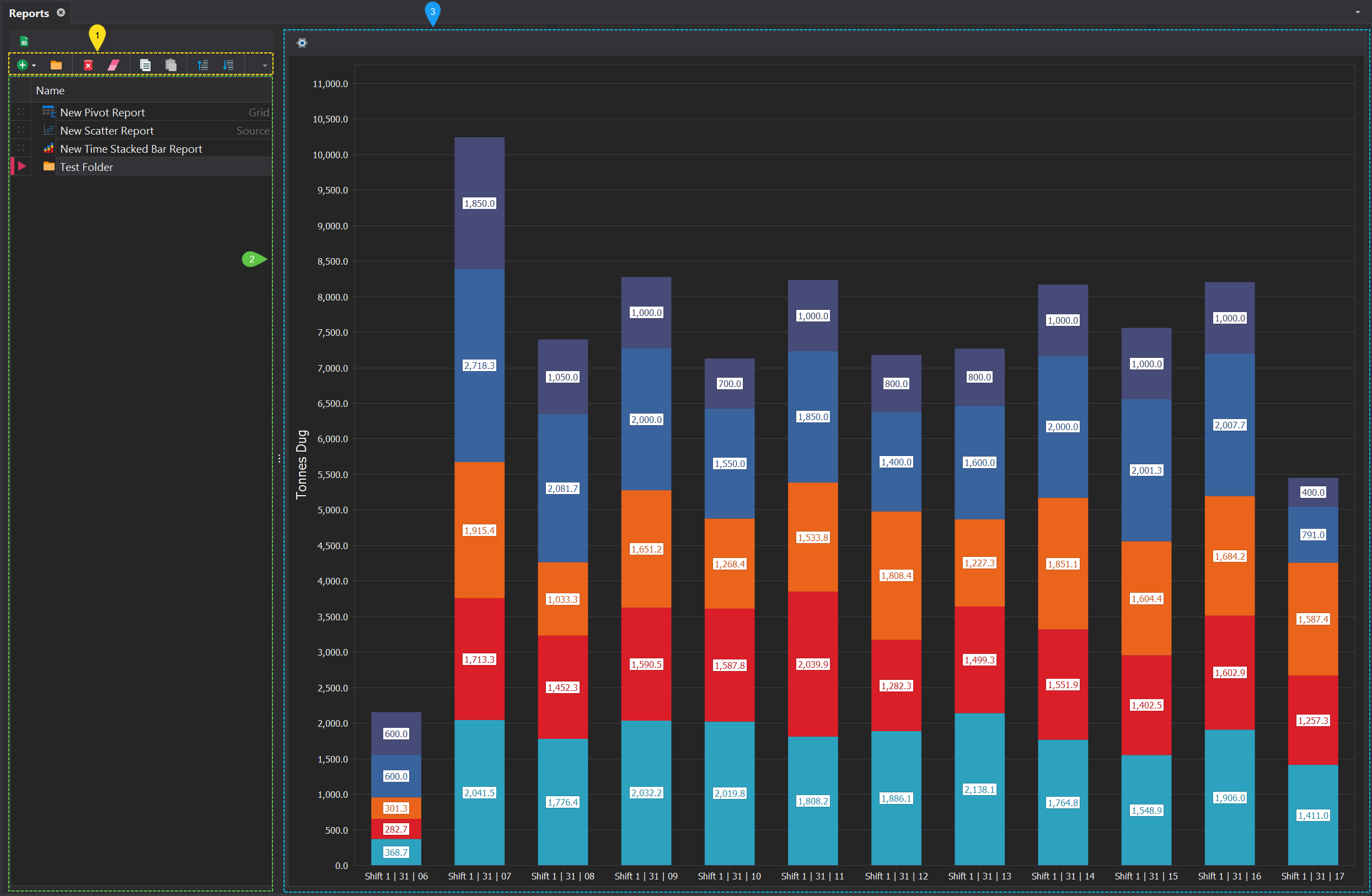
The Reports tab contains several key components, each numbered in the image below.
1. Report Tool Bar
A number of tools are available for managing reports in the project. These iclude the functionaliry for creating, deleting, exporting and sorting. More infomration on the functioanlty in the toolbar can be found here.
2. Report Tree
The Report tree displays the hierarchical structure of files currently imported into the project. Reports can be nested within folders, and folders can be nested within other folders, providing an effective way to organise and manage large numbers of reports.
Reports can be repositioned by dragging and dropping them within the file tree, offering a straightforward method for reorganizing your project structure. This drag-and-drop functionality is consistently available across all file trees throughout the software
3. Report Panel
The Report Panel displays the selected report, offering a detailed view of the data and analysis. Changing the selected report in the report tree will automatically update the content shown in the panel.
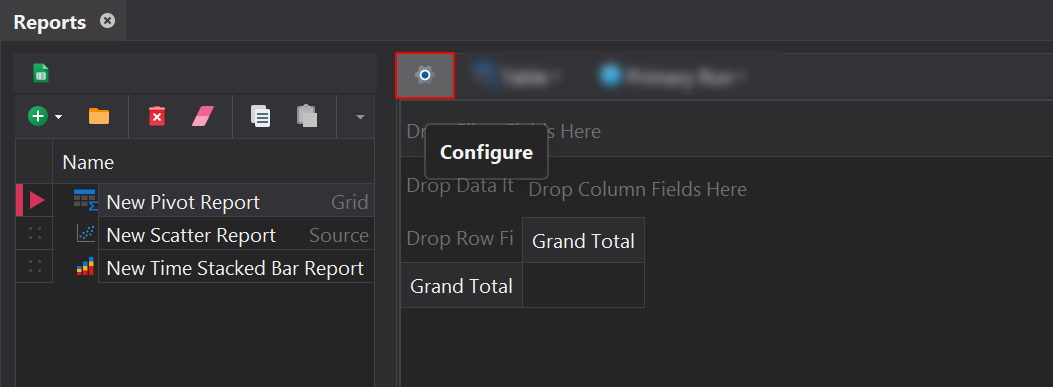
In all reports, the configuration of the report can be managed by clicking on the cog icon (⚙️) located at top of the report panel.